
As a CAD instructor, I see how a template for graph paper speeds design reviews and improves accuracy. A grid-based starting point helps map coordinates, test scales, and communicate ideas. This guide compares graph paper with plain and lined options and outlines a practical workflow you can use in drafting tasks.
Graph paper templates provide a consistent reference that reduces guesswork when translating ideas into CAD sketches. By fixing grid spacing and margins, you can focus on geometry, alignment, and scale rather than re-creating a reference grid for every project. A well-designed template also helps beginners learn coordinate thinking and supports more efficient design reviews.
Grid basics
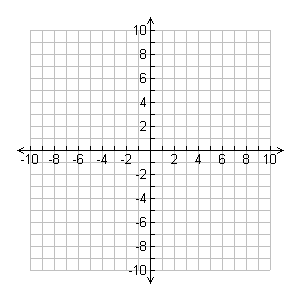
Grid spacing and coordinate grids influence how you plan drawings. A common approach is to match your CAD units to the grid so one square represents a defined measurement. Keep margins tidy and consistent to prevent lines from being truncated during printing. Knowing how square grids relate to coordinates helps you place features quickly and accurately.
Compared with plain paper, graph paper keeps you honest about distances and angles, since each square is a known unit. Lined paper can help with neat handwriting but offers no reliable vertical or horizontal references, which matters for CAD sketches. The tradeoffs are accuracy versus simplicity, and the right template makes the difference between a rough idea and a precise layout.
Step-by-step planning
Begin by defining the task, the required outputs, the units you will use, and the level of precision needed. Then choose a grid spacing that matches your unit system, for example 0.25 mm or 0.5 inch per square. Decide on margins and an orientation that fits your printer and paper size. Finally, set the scale for printed outputs and plan a quick test print.
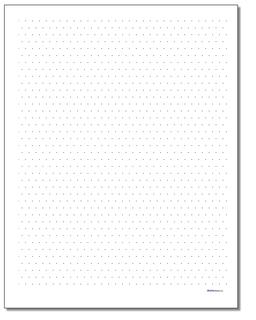
Next, tailor the template to your workflow. Select a grid size that matches typical CAD features, and confirm paper size and orientation before printing. Set margins to stay within printable bounds and ensure content won’t be clipped. Decide the printing scale so one square equals the intended measurement, then run a quick test print.
Implementation tips
Practical advice includes choosing grid size and paper size that fit your project, deciding portrait or landscape orientation, and ensuring print settings use 100 percent scale. In your browser or printer dialog select actual size or 100% to avoid automatic scaling. After printing, verify measurements with a ruler and a known distance to catch any drift before you draw.
FAQ
Q1: What grid spacing should I choose for CAD sketches? A1: Use 0.5 mm to 1 mm for small parts and 1 cm for larger layouts, depending on your unit system. Q2: Should I prefer portrait or landscape? A2: Landscape is usually better for wide layouts, while portrait suits tall drawings. Q3: How do I verify accuracy after printing? A3: Print a calibration page, measure a known distance with a ruler, and compare to the grid.
Q4: How does printing scale affect results? A4: Ensure the printer is set to 100 percent and test with a quick drawing before committing.
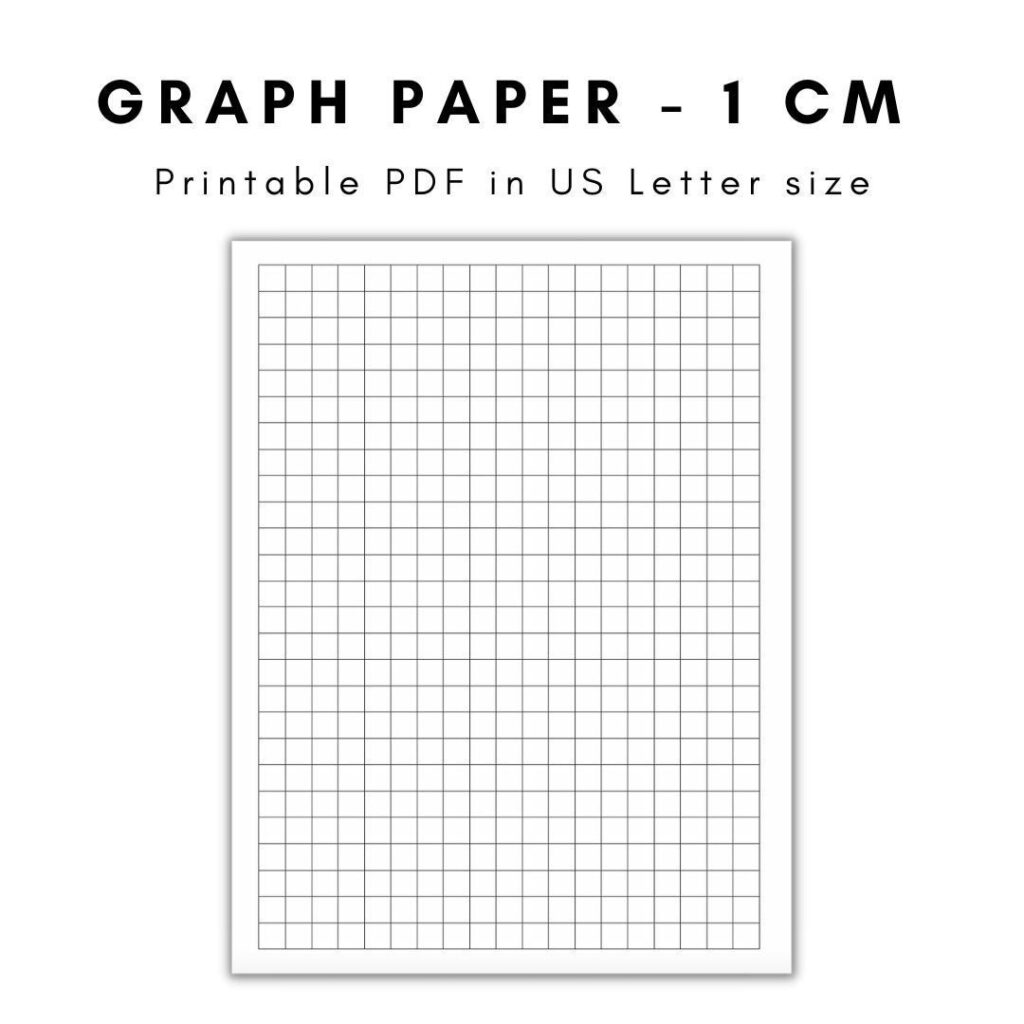
With a clear grid template in place, you gain consistency across drawings, faster iterations, and more reliable measurements. Start by selecting a grid size that matches your CAD unit system, set margins and orientation for your printer, and verify a test print before finalizing. The result is a practical, repeatable workflow that supports accuracy without slowing you down.