As a graphic designer, I rely on grids to align ideas and color with confidence. Even with digital graph paper at my fingertips, the basics of line, scale, and margins guide every project. Small misalignments can derail composition, so I test layouts against real measurements before committing.
In practice, using grid paper starts with choosing a grid style that fits your project. Coordinate grids help with layout symmetry, while square grids ensure proportional spacing when you scale elements up or down. I recommend starting with a simple 1/4 inch grid for logos and layouts, then test at 100% scale to see whether lines stay crisp on the page.
Printing accuracy and scale
Printing accuracy begins with a predictable base: set up your printer for true-to-size output, choose the correct paper type, and align the graph lines to the margins. When you map a grid to a layout, check that 1 unit on screen equals 1 unit on paper. Consider ink bleed and the surface finish of the paper, which can subtly shift measurements.
Margins matter as much as lines. If you plan a printable grid for drafting or client mockups, set generous margins to avoid losing edge lines in printers with non-bleed options. When you export or print, choose a standard paper size and verify the non-printable areas your printer requires. For most designs, a government letter or A4 size with 0.25 inch margins preserves clarity.
Grid size and paper selection
How you choose grid spacing affects every decision—from typography alignment to icon proportions. A 8-points-per-inch grid yields tight, precise layouts, while a 1-page grid with larger squares supports quick composition. Match grid spacing to your paper size, then check scale by printing a test block at 100%. If the numbers line up with rulers, you know the grid will translate to real-world measurements.
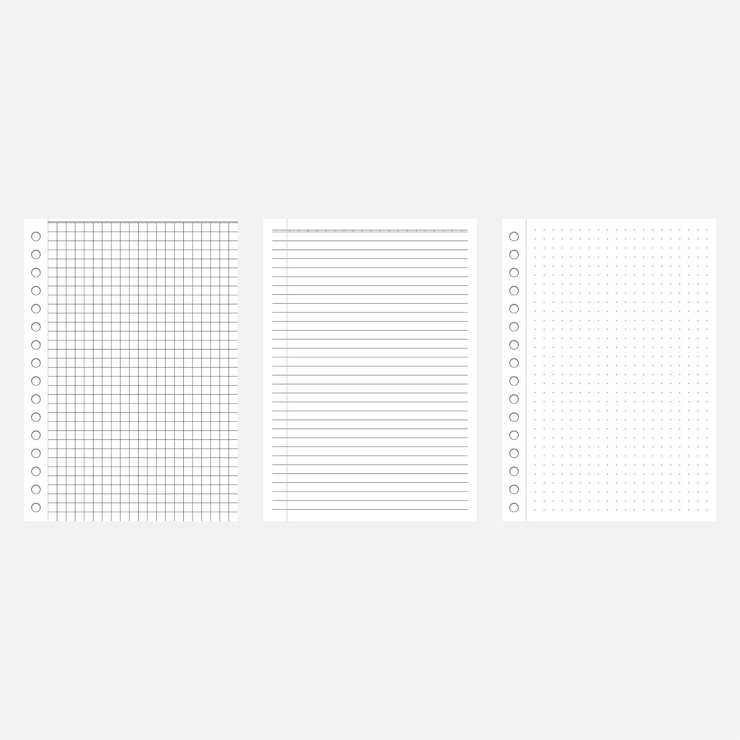
Printing orientation and browser settings can surprise you. If you design on a vertical document, set portrait orientation and enable native margins in the printing dialog. Some software can scale to fit, but that defeats true scale if you are testing fit. Use the actual print preview, and disable fit-to-page options. For color grids, consider a black-and-white print to verify alignment without confusing hues.
Conclusion: When you optimize grid size, margins, and print settings, your work translates reliably to paper. FAQ: Q: What grid size should I start with? A: Begin with a 1/4 inch grid and test at 100% quickly. Q: Do margins matter? A: Yes—keep at least 0.25 inch. Q: Portrait or landscape? A: Pick the orientation that best fits the layout. Q: How to verify scale? A: Print a known block and measure.